


Managing purchased plans
Pricing Plans: Changing the Payment Date for Recurring Subscriptions
Important:
Currently, you cannot change the payment date for recurring subscriptions if:The pricing plan recurs on a daily basis.
You applied a discount to the subscription.
The information below also applies to Wix Stores subscriptions.
Change the date on which you collect recurring payments from your customers to increase the chances of successful payment and to help streamline your admin. For example, you can choose to collect payments from all your customers on the same day of each month.
In this article, learn more about:
Important information about changing payment dates
In some cases, due to the reduction or extension of the current cycle, you may need to adjust the payment amount of the last cycle. In these cases, you can issue credit or add an extra charge to the next subscription payment.
You can change the payment day/date for active recurring Pricing Plans subscriptions only. You cannot change the payment date for recurring subscriptions whose status is pending, in a free trial or recurring subscriptions in their last subscription cycle.
With all recurring plans, changing the payment date leads to either a shortening or to an extension of the current billing cycle and the subscription. For example, if you postpone the payment day from June 7th to June 15th, you extend the subscription by 8 days.
Changing the payment day for weekly recurring subscriptions
For weekly subscriptions, you can choose the day of the week you want to charge your customers. This makes it easier to update your records of which customers have paid and which customers have not paid yet. For weekly plans, you can only postpone the payment day.
To change the payment date for a weekly recurring subscription:
Go to Subscriptions in your site's dashboard.
Click the relevant recurring plan.
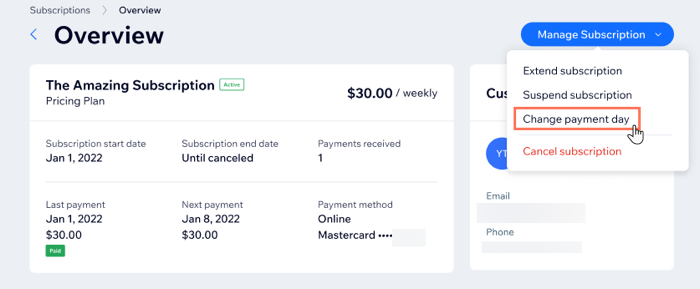
Click Manage Subscription at the top.
Click Change payment day.
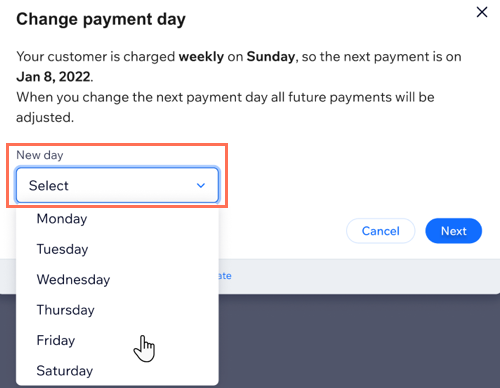
Select your preferred payment day from the New day drop-down.
Note: You cannot choose the original payment day as the new payment day (e.g. switching from Wednesday to Wednesday).
Click Next.
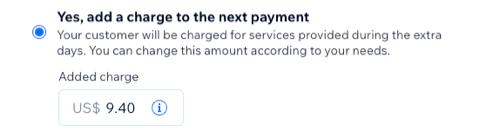
Choose whether you want to apply a credit or a charge for the changes to the billing cycle:No, don't add any credit/charge to the next payment: Select this option if you do not wish to credit or charge your customer for days reduced or added to their billing cycle (for example, if no services were missed or added during those days).
Yes, add a credit/charge to the next payment: Select this option to apply a credit or a charge for the change in payment day. If you choose this option, the relevant amount (including tax) to credit or charge appears automatically. For example, if the subscription costs $7 a week, and you extend it by exactly 1 day, then a $1 charge is proposed. You can click to edit the amount if you need to, for example, when the subscription is based on the number of services used in a given amount of time.
Click Next.
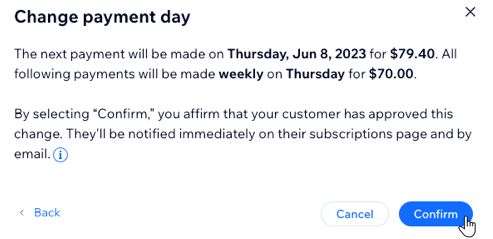
Review the summary of the payment day changes, including additional charges, and then click Confirm.
Changing the payment date for monthly or yearly recurring subscriptions
For monthly and yearly subscriptions, you can choose on what date in the month you want to charge your customers. For example, this is useful when customers need to adjust their payment date to after their pay day each month.
You cannot select a date within 5 days of the date you are changing from. This is to prevent unwanted surprises for your customers.
To change the payment date for a monthly or yearly recurring subscription:
Go to Subscriptions in your site's dashboard.
Click the relevant recurring plan.
Click Manage Subscription at the top.
Click Change payment date.
Select your preferred payment date, advancing or postponing the payment date, from the calendar in the New date drop-down.
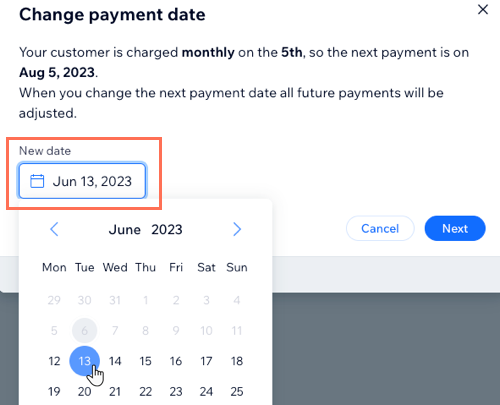
Click Next.
Choose whether you want to apply a credit for the changes to the billing cycle:No, don't apply credit to the next payment: Select this option if you do not wish to credit your customer for days when services weren't provided as a result of the change.
Yes, apply credit to the next payment: Select this option to apply credit for days when services weren't provided as a result of the change in payment day. If you choose this option, the relevant amount (including tax) to credit appears automatically. You can click to edit the amount if you need to.
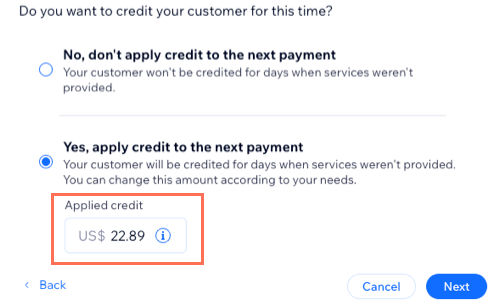
Click Next.
Review the summary of the payment day changes, including credits applied, and then click Confirm.
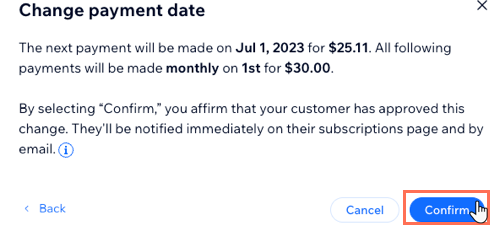
FAQs
Click a question below to learn more about changing the subscription day/date for a customer.
Why can I not change the payment date on one of my customer's subscriptions?
Currently, you cannot change the payment date for recurring subscriptions if:
The pricing plan recurs on a daily basis.
You applied a discount to the subscription.
Your site language is not set to English.
Are my customers notified when I change their payment day/date?
Yes, when you change a customer's payment day/date, they receive an automated email informing them of the changes and any additional charges or credits to their account. A notification also appears in their My Subscriptions page.
You must get your customer's permission before changing their payment date.
What happens when I change the payment date and shorten the subscription cycle?
When you shorten the subscription cycle, you have the option of applying a credit to your customer's next payment. This reduces their next payment amount. This credit only applies to the first payment after changing the payment date.
What happens when I change the payment date and extend the current subscription cycle?
When you extend the subscription cycle, you have the option of applying a charge to your customer's account, and increase their next payment amount. This charge only applies to the first payment after changing the payment date and extending their current cycle.
Can I change the customer’s payment day/date back after changing it once?
Yes, as long as the original date hasn’t passed, you can change the date back. If the original payment date has passed, you can select a new one, within the same date range as before.
Do credits or charges caused due to a change in payment date appear in my customers' automated invoices?
Yes, the extra charge or credit appears in the invoice for the next payment after the change.