top of page

Setting up Online Programs

Online Programs: About Automations for Your Program

Boost your site's success with minimal effort by creating automations to manage your program. Automations streamline repetitive tasks and help you hit your marketing targets. Think of them as a combination of triggers and actions—like sending a welcome email when someone joins your program. You can use built-in triggers and actions, or customize your own.

Ready to create automations for your program?

Go to Automations in your site's dashboard.
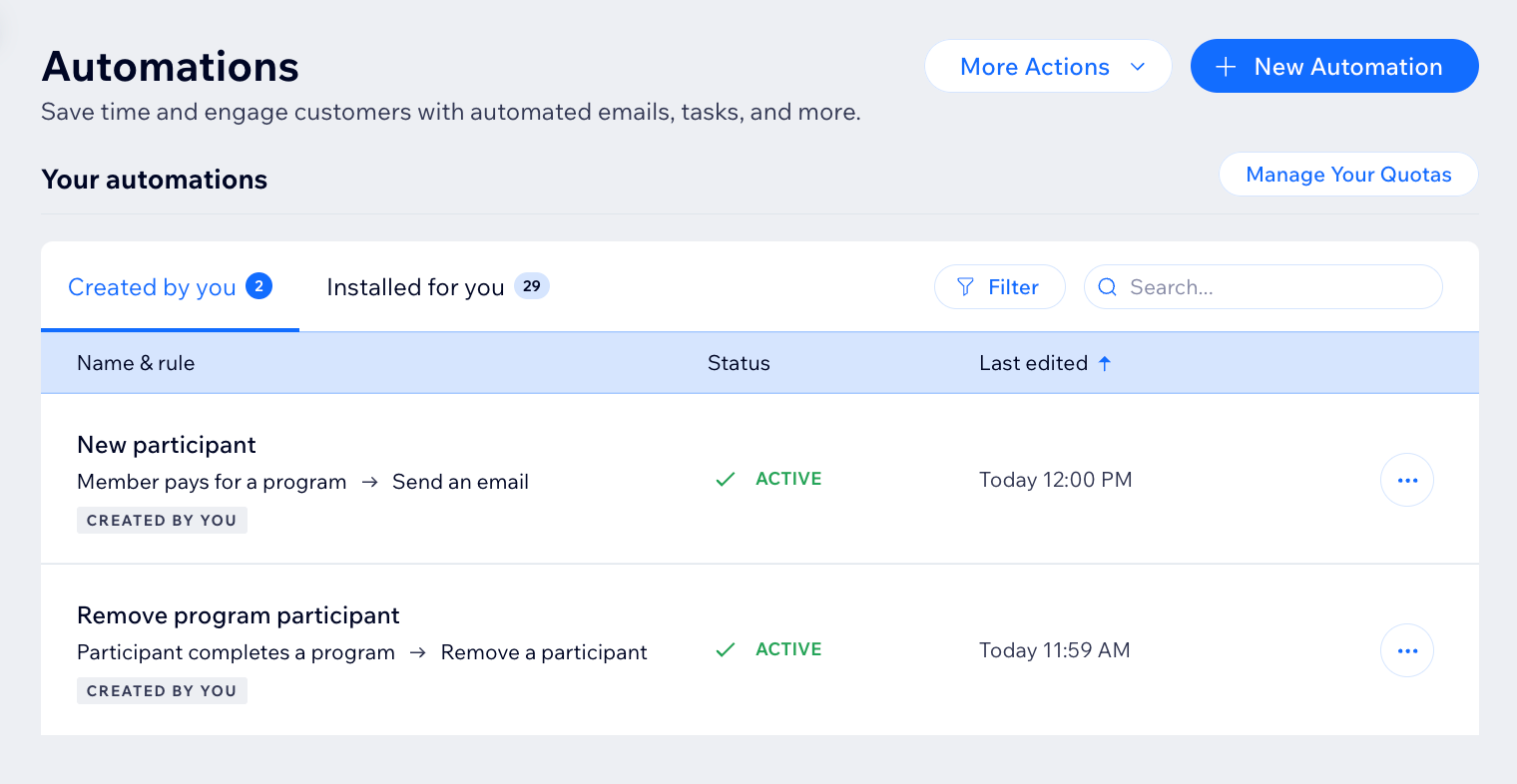
A screenshot of the Online Programs app in the automation flow

Choose a trigger

Select the Online Programs app in the automation flow to see its triggers. A trigger is an event that a member or participant does involving your program. This event initiates an automatic response. You can choose from a list of available triggers and select specific programs.

For example, you can remove a participant when they complete a self-paced program. To do so, use the trigger "Participant completes the program". Add a delay of 3 days, and the action "Remove participant", for a specific program.

The built-in triggers for Online Programs are:

  • Member pays for a program

  • Member joins a program

  • Participant completes a step

  • Participant leaves a program

  • Participant completes a program

  • Program end date has passed

A screenshot of the Online Programs app in the automation flow

Choose an action

Select actions that respond to your trigger. You can choose general actions like sending an email or updating Google Sheets. You can also use the specific Online Programs action: Remove a participant. For example: Combine "Program end date has passed" with the action "Remove participant". This will remove participants from a program when it ends.

A screenshot of the Online Programs app in the automation flow

Participants that are removed by an automation are labeled as Auto-Removed.
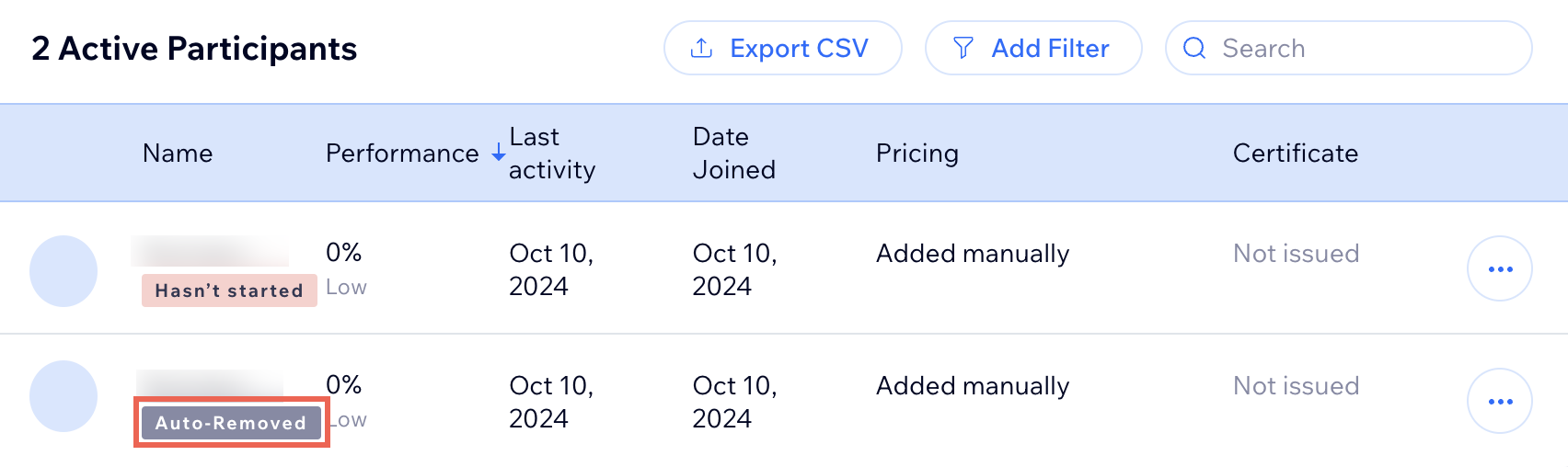
A screenshot of the Online Programs app participants list

Need A Professional Website?
Contact Us 
Today!

Wix Stores: Accepting Payment by Manually Entering a Credit Card in the Wix App

Wix Stores: Customizing Your Store in the Wix Mobile Apps

Wix Stores: Adding Images, GIFs, and Videos to a Product in the Wix App

Wix Stores: Setting Up Shipping Using the Wix App

Wix Stores: Creating Coupons Using the Wix App

Wix Stores: Canceling and Refunding Orders Using the Wix App

Wix Stores: Adding Tracking Numbers to Orders in the Wix App

Wix Stores: Managing Your Orders from the Wix App

Wix Stores: Managing Inventory Using the Wix App

Wix Stores: Creating and Managing Categories Using the Wix App

Wix Stores: Sharing a Product Using the Wix App

Wix Stores: Duplicating a Product Using the Wix App

Wix Stores: Adding Product Options Using the Wix App

Wix Stores: Adding a Product in the Wix App

Wix Stores: Start Selling in the Wix Member Apps

Wix Stores: Tagging and Displaying Product on YouTube

Wix Stores: Connecting Your YouTube Channel to Wix

Wix Stores: Creating a Faire Store Using the Faire Integration App

Wix Stores: Adding the "Multiorders Etsy & eBay Sync" App

Wix Stores: Adding and Setting Up Google Merchant Solutions

Wix Stores: Adding Store Products to Your TikTok for Business Catalog

Wix Stores: Connecting and Setting Up an Amazon Shop

Wix Stores: Managing How Products Are Listed on eBay

Wix Stores: Connecting and Setting Up an eBay Shop

Wix Stores: Tagging Instagram Posts and Stories

Wix Stores: Promoting Your Facebook Shop Using Dynamic Ads

Wix Stores: Tagging Store Products in a Facebook Post

Wix Stores: Adding a "View Shop" Button to Your Facebook Shop

Wix Stores: Changes to Facebook Shops

Wix Stores: Creating a Facebook Shop Using the Facebook Shops by GoDataFeed App

wix experts
Graphic2Traffic web design
©
bottom of page