


Wix Stores: Managing Emails Sent to Store Owners
Important:
This article refers to the email that merchants receive. Learn more about emails sent to customers.
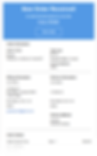
Every time a store order is placed, you receive an email notification. You can customize this email so that it's sent to other recipients and change the email's text and design.
Note:
Some payment providers take a day or two to process payments. In these cases, the email is sent and the order appears in the Orders tab only after the payment is processed.
Viewing confirmation notifications
In addition to the email notification, you also receive a notification in your dashboard.

Note:
If you are using a merchant account (e.g. PayPal, Stripe), you may also receive a confirmation email from the relevant payment provider to the email address associated with your account.
Customizing the recipient address
By default, the confirmation email is sent to the email address set in the Business Info section of your site's settings. You can change that email address at any time.
To change your default email address:
Go to the Business Info section of your site's settings.
Scroll down to the Location & contact info section.
Enter an email address in the Email field.
Tip:
You can also direct the email to a different address or to multiple email addresses. Learn how to customize the email addresses notification emails are sent to.
Customizing the email
You can customize the emails you receive so they match your business needs. You can access these emails through Automations or from the Emails & Notifications tab in Checkout settings.
To access the notifiction email from Emails & Notifications:
Go to Checkout Settings in your site's dashboard.
Click the Emails & Notifications tab at the top.
Scroll down to the Notifications you get section.
Click Edit next to Get notified when an eligible order is placed.
Troubleshooting confirmation email issues
If you are not receiving confirmation emails, try the steps below:
Step 1 | Test your email
Send yourself a test email to make sure that your email address is receiving regular emails.
Step 2 | Check that the email isn't in the spam folder
Check if the email notification is in your spam / junk / bulk / promotions folder. If it is, make sure you whitelist the email address: no-reply@mystore.wix.com.
Step 3 | Check your MX records setup
If the email address you're using for your Wix account is your domain's email address (i.e. example@yourdomain.com), check that your MX records are set up correctly.
Step 4 | Test online ordering
Place a test order through your store using the Manual (Offline) Payment method and see if you receive the email notification. Completed orders should appear in the Orders tab of your dashboard.
Still need help?
What information should I include if I need to reach out for assistance?
For us to best assist you, it helps to have the following information ready:
The order date
The order ID
The email address associated with your business (i.e. the address entered in the Location & contact info section in the Business Info tab of your site's dashboard)
Need A Professional Website?
Contact Us Today!
I'm a paragraph. I'm connected
I'm a paragraph. I'm connected
I'm a paragraph. I'm connected
I'm a paragraph. I'm connected
I'm a paragraph. I'm connected
I'm a paragraph. I'm connected