


Wix Stores: Customizing the Category Page
Important:
The Category page is not yet available to everyone.
The Category page is your main shop page. You can design every part of the page, choose your preferred layout, decide what information to show, and much more.

Tips:
You only need to customize the Category page once. Your customizations automatically apply to each category.
Use the category preview selector at the top right to choose a category and preview it.
Accessing the Category page settings
Wix Editor
Go to your Category page:
Click Pages & Menu

on the left side of the editor.
Click Store Pages.
Click Category page.
Click the Category page element twice on your page.
Click Settings.
Studio Editor
Go to your Category page:
Click Pages

on the left side of the editor.
Click your Category page under Store Pages.
Click the Category page element on your page.
Click Settings.
Wix Harmony Editor
Click the Page dropdown at the top left of the page.
Select the Category page under Store Pages.
Click the Category page in the editor.
Customize the Category page using the options available on the action bar.

Choosing which page elements to display
The Display tab lets you select the elements to display on the Category page and hide those you don't need.
To show or hide Category page elements:
Click the Display tab.
Select or deselect the checkboxes next to elements to show or hide them.
Adjusting the Category page settings
In the Settings tab, you can customize what happens when visitors reach the end of a page, choose what happens when customers hover over product images, and more.
To select Category page settings:
Click the Settings tab.
Customize any of the following:
Product options: Select which product options are displayed.
Tip: This is relevant if you enabled product options and if some products have multiple options, such as color, size, and shape.
Scroll behavior:
Select what happens when customers scroll to the bottom of the page.
Enable the Sticky sidebar toggle to keep filters visible while scrolling. If enabled, customize the sidebar's distance from the top.
Product image effects: Set what happens when a customer moves their mouse over a product on desktop.
Choosing the Category page layout
Choose your preferred layout for both the header (if displayed) and the product display.
Stretching to full width in the Wix Editor:
Click the Category page in the editor, select the Stretch icon

, and then click the toggle to enable it.

To choose layout options:
Click the Layout tab.
Customize any of the following:
Breadcrumbs
Align the breadcrumbs left, right, or center.
Header section
Header position: Choose where the header appears with respect to the sidebar: Inline or Top.
Tip: If you select Top, we suggest hiding the category menu to avoid categories giving the appearance of subcategories of the selected category.
Category info placement: Display the category description above, in front, or below the image.
Category info alignment: Align the header text to the left, right, or center.
Category image height: Drag the slider to set the category image height.
Title & description spacing: Drag the slider to set the desired spacing.
Description text appearance: If long, customers click to view the whole message.
Category menu
Select where you want to display the category menu, in the sidebar:

...or on top as a horizontal menu:
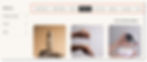
After choosing, you can customize the selected layout.
Important:
Adding a horizontal category menu on the desktop for the first time automatically adds it to mobile. After that, you can manage them separately.
Vertical category menus don't appear in the mobile view (in the Wix Editor) or on smaller breakpoints (Studio Editor). We suggest displaying a horizontal menu on mobile to help customers easily navigate your store's categories. Learn more about displaying categories on mobile.
Product grid
Grid behavior: Choose whether the product grid has a fixed layout or adjusts to your visitors' screen size.
Note: Customizations vary depending on whether you choose Fixed or Responsive.
Fixed: All visitors see the same amount of rows and columns in the gallery.
Responsive: The number of products displayed adjusts according to your visitor's screen size.
Note: The responsive setting is available only if you stretch the gallery to full width.
Product images
Image placement: Place the image above or beside the product text.
Image resizing: Select a resizing option:
Crop: Crops all images to the same size.
Fit: Maintains the images' aspect ratios.
Image ratio: Select a height-to-width ratio.
Image side padding: Adjust the padding to the left and right of the image.
Image top and bottom padding: Adjust the padding above and below the image.
'Add to Cart' button
Choose where the button is placed, on the image or below it.
Note: If the button is on the image, it replaces the 'Quick View' button.
Product info
Choose a product card layout option and customize it using the available options.
Product options & quantity
Show only color swatch options: Enable to display only color options. Customers will be able to select drop-down options such as 'Size' in the Product page.
Limit the number of color swatches displayed: Select the maximum number of colors displayed.
Text choices style: Display product option and modifier text choices either as a drop-down menu or as buttons. Customize the option you chose.
Quantity box width: Set the width of the quantity selector.
Ribbons
Choose where to display the product ribbons. If you selected On image, you can customize the padding.
Learn more about managing product ribbons.
Designing the Category page
Customize your Category page to match your brand's overall design.
To design the Category page:
Click the Design tab.
Follow the steps below to design every part of the Category page.
General
Customize the color and opacity of your Category page background and select a font and color for the breadcrumbs and total product count.
Tip: Breadcrumbs are the links that appear at the top left of the Category page. They show your visitors the exact page they're on.

Header section
Design the header of your Category page:
Customize the fonts and colors of the header text.
Make the corners of your category image rounder or more square.
If the category description is on the image, customize the design using the available options.
Category menu
Tip: If you display a vertical category menu, the design options are listed together with the filter design options.
Customize the design options available for the type of category menu you're displaying.
Filters
Tip: If you display a vertical category menu, the design options are listed together with the filter design options.
Select a background color and customize the fonts that appear in your filter.
Tip: The applied filters are indicators which let customers know which filters they selected.

Product cards
Each product in the gallery is displayed inside a "card". You can customize the product card background and borders, and make the image corners rounder or more square.
Product info
Select fonts and colors for the available text.
Product options
If enabled, customize the design of the color swatches and text product options using the available settings.
Note: To show or hide product options, go to the Display tab.
Quantity
If enabled, customize the design of the product quantity selector using the available options.
Note: To show or hide the quantity selector, go to the Display tab.
Ribbons
Select a ribbon style and customize the colors, border, corners, and font.
Note: To hide all ribbons, go to the Display tab. To select the ribbon placement, go to the Layout tab.
Name & price divider
Customize the width, length, and color of the divider that appears between the product name and its price.
Note: To show or hide the name & price divider line, go to the Display tab.
'Add to Cart' button
Customize the 'Add to Cart' button style, colors, border, corners, and text. Choose whether you want to display the 'Add to Cart' button as text, text and an icon, or only an icon.

You can select a design for each view - default, hover, and disabled (i.e. out of stock).
Note: To display or hide the button, go to the Display tab.
Load More/Previous Buttons or Pagination
If you chose the Load More button or Pagination option in the Settings tab (as a way to let customers view more products), you can customize the look of the button or page numbers.
Quick View button
Quick view allows customers to view product details in a popup, without leaving your shop page.

In the design tab, you can design only the 'Quick View' button.
Important: If the 'Add to Cart' button is enabled and placed on top of the product image, the 'Quick View' button won't be displayed.
Learn how to enable or disable quick view and customize the quick view window.
Editing the text on the Category page
In the Text tab, edit any of the available text so it matches your voice and tone. You can personalize the text appearing on buttons across the page (e.g. add to cart, pre-order) and the message that appears when a product is out of stock.
Tip:
If you choose to hide elements, the option to edit the text in that element doesn't appear.
To edit text:
Click the Text tab.
Edit any of the available text options.
Customizing the 'Add to Cart' button
If not already enabled, click Show Add to Cart to display the button in your Category page.
Next, choose how customers select options such as a product size or color. Learn more about the 'Add to Cart' button behavior.
Finally, choose where customers are directed after clicking the button:
Show success pop-up: A pop-up notification appears.
Open side cart: Side cart opens on the side of the screen.
Go to cart page: Customers are taken directly to the cart page.
Stay on category page: Customers stay on the same page. The button displays a checkmark to indicate that the product was successfully added.
Customizing the category menu
Any active category you create automatically appears in the category menu, but you can hide categories you don't want to display. You can also change the order of the categories you display.

Important:
The vertical category menu does not appear on mobile. We recommend displaying a horizontal menu on mobile. Learn more about displaying categories on mobile.
To customize the sidebar:
Click the Menu tab.
Choose how you want to manage the category display
Sync all my categories automatically: Every active category is automatically displayed in alphabetical order.
Customize & reorder the menu manually: Gives you the option of hiding certain categories and reordering the list:
Deselect the checkboxes next to the categories you want to hide.
Drag the categories to reorder them.
Customizing your filters
Click the toggle to show or hide your filters. If you display filters on your site, you can customize them.
To customize your filters:
Click the Filters tab.
Customize any of the following filter options:
Show filters: Click the toggle to show or hide all filters.
Show filters title: Deselect the checkbox to hide the "Filter by" title.
Filters title: If you display the title, you can edit the title text.
Let customers filter by: Hover over a filter and click the More Actions icon

to hide or edit it.
Category: You can hide the category filter or click Edit to select which categories to display.
Price: You can hide the price filter or click Edit to edit the filter title.
Product Options: Hide the product options filter.
Tip: If you display product options, relevant options are displayed for each page.
Discount: You can hide or delete this option. If you display this option, you can select categories to which sales are applied.

Customizing the sorting options
Your Category page comes with sorting options to make it easier for customers to view relevant products. You can disable any of the options or hide sorting completely.

To customize product sorting:
Click the Sorting tab.
Select the order your products are displayed from the Order products by drop-down. If you allow customers to sort products, they can override this setting.
Note: By default, the order of products in a category depends on the order you set in the dashboard.
Customize any of the following settings:
Click the Show "Sort by" options toggle to enable or disable it.
Edit the 'Sort by' label.
Deselect the checkbox next to any sorting option you want to hide.
Customizing the quick view
The quick view option lets customers view product details in a pop-up without leaving your category page.
Important:
If the 'Add to Cart' button is enabled and placed on top of the product image, the 'Quick View' button won't be displayed.

Learn how to enable or disable quick view and customize it.
FAQs
Click below for answers to common questions about customizing the Category page.
Can I create more than one version of the Category page?
Yes, you can create more than one version of your Category page and customize each version to suit your site's needs.
How can I make the Category page more accessible?
Some visitors with visual impairments rely on screen readers to read and understand the Category page. For the best experience, select the Top header layout setting to cater to their needs.
Click the Category page element on your page.
Click Settings.
Click Layout and select Header.
Select Top.

How can the Category page help my site's SEO?
Each page has a separate URL to help improve your Product Gallery's SEO. For example:
First page URL: https://www.mystunningwebsite.com/shop
Second page URL: https://www.mystunningwebsite.com/shop?page=2
Category URLs make your site more "SEO friendly". They help boost SEO ranking by making it easier for search engines to understand what you're selling and how your site is organized.
Learn how to customize advanced category SEO settings.
Need A Professional Website?
Contact Us Today!
I'm a paragraph. I'm connected
I'm a paragraph. I'm connected
I'm a paragraph. I'm connected
I'm a paragraph. I'm connected
I'm a paragraph. I'm connected
I'm a paragraph. I'm connected