


Wix Events: Customizing Your Event Schedule Page
Your event schedule is more than just a list - it's part of your guest's experience. Customize it with your colors, fonts, and layout to make it feel like a natural extension of your site.

Customizing your event schedule
You can access all customization options for the event schedule directly from your editor. These settings let you adjust the layout, display options, text, and design elements of your schedule page.
Wix Editor
Go to the Schedule page:
Click Pages & Menu

on the left side of the editor.
Click Event Pages.
Click Schedule.
Click the schedule element on your page.
Click Settings.
Choose what you want to customize:
Display
Choose what you want to show on the schedule page.
Click the Display tab.
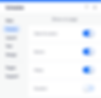
Enable the relevant toggle(s) to select which elements you want to show or hide:
Date & location: Show the event’s date and location.
Button: Display a button (e.g. “Buy Tickets”) that links to the event details.
Filters: Let potential guests filter the schedule by specific days or categories.
Duration: Show how long each event lasts (e.g. 2 hours).
Layout
Choose how your schedule header is aligned on the page.
Click the Layout tab.
Select a layout for your schedule header: Left, Center, or Right.

Text
Edit the text that appears in your schedule.
Click the Text tab.
Enter the text you want to display in the relevant fields.

Design
Customize the look of the Schedule page.
Click the Design tab.
Choose what you want to design:
Text: Select fonts and colors for your text.
Buttons & links: Style the “Get Tickets” button and other links.
Tags: If you’ve added tags, customize their color and appearance at the top of the schedule.
Date: Adjust the date style and the divider line.
Background: Set the background color and divider thickness.


Studio Editor
Go to the Schedule page:
Click Pages

on the left side of the editor.
Click Schedule.
Click the schedule element on your page.
Click Settings.
Choose what you want to customize:
Display
Choose what you want to show on the schedule page.
Click the Display tab.
Enable the relevant toggle(s) to select which elements you want to show or hide:
Date & location: Show the event’s date and location.
Button: Display a button (e.g. "Buy Tickets") that links to the event details.
Filters: Let potential guests filter the schedule by specific days or categories.
Duration: Show how long each event lasts (e.g. 2 hours).

Layout
Choose how your schedule header is aligned on the page.
Click the Layout tab.
Select a layout for your schedule header: Left, Center, or Right.
Text
Edit the text that appears in your schedule.
Click the Text tab.
Enter the text you want to display in the relevant fields.
Design
Customize the look of the Schedule page.
Click the Design tab.
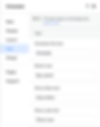
Choose what you want to design:
Text: Select fonts and colors for your text.
Buttons & links: Style the “Get Tickets” button and other links.
Tags: If you’ve added tags, customize their color and appearance at the top of the schedule.
Date: Adjust the date style and the divider line.
Background: Set the background color and divider thickness.


FAQs
Click a question below to learn more about your event schedule page.
Can I customize tags in an event schedule?
No. Currently, it's not possible to sort tags alphabetically or customize their order. Vote for this feature if you’d like to see it in the future.
How can I schedule when registration opens and closes for my event?
You can set specific registration opening and closing dates and times for both RSVP and ticketed events directly from your site's dashboard.
Can I schedule an event to be published at a future date?
No. Currently, it's not possible to schedule an event to be published at a future date. Vote for this feature if you’d like to see it in the future.
Need A Professional Website?
Contact Us Today!
I'm a paragraph. I'm connected
I'm a paragraph. I'm connected
I'm a paragraph. I'm connected
I'm a paragraph. I'm connected
I'm a paragraph. I'm connected
I'm a paragraph. I'm connected