


Wix Editor: Changing the Browser Theme Color on Your Mobile Site
Oct 25
1 min read
Updated: Oct 25
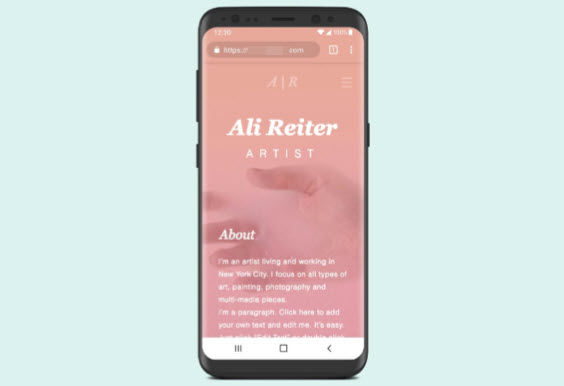
Use the Mobile Tools panel to set a browser theme color on your site. This is a great way to personalize the experience for mobile visitors using Chrome.
To change the browser theme color:
Click Mobile Tools

on the left side of your mobile editor.
Click the Add to Site icon

next to Browser theme color.
Click the color box in the panel.
Select the color you want.
Click Done.

See it in action:
To see how it looks, visit your published site on an Android device in Google Chrome.
This article is credited to the Wix team - https://support.wix.com/ and we thank them for that!


Comments