


Wix Gift Cards: Customizing Your Site's Gift Card Page
Customize your site's gift card page to reflect your brand and provide a seamless shopping experience that attracts customers. Personalize every detail, such as fonts and colors, and decide what to display, like add-to-cart or direct purchase buttons.

Customizing the gift card page
Customize the design and layout of the page to match your brand and attract customers. Decide which fields you want to display and which options you'd like to have available for customers.
To customize the gift card page:
Wix Editor
Go to your Gift Card page:
Click Pages & Menu

on the left side of the editor.
Click Site Menu.
Click Gift Card.
Click the Gift Card element on your page.
Click Settings.
Click the Settings tab and choose what to display on your gift card, set recipient options, and configure your Add to Cart and Buy now buttons.
Click Text and edit the titles and labels on your gift card, including the Quantity selector, Amount options, Recipient details, Recipient selection and Buttons.
Click Design, then choose what you want to customize:
Page design: Customize the page background, gift card details such as the title, price, and description, and the image settings.
Fields & selection: Customize the font and color of field titles, amount options, gift card recipient details, and input fields.
Buttons: Customize the fill color, border, corner radius, and text font and color for the Add to Cart and Buy now buttons.

Wix Studio Editor
Go to your Gift Card page:
Click Pages

on the left side of the editor.
Click Gift Card under Main Pages.
Click the Gift Card element on your page.
Click Settings.
Click the Settings tab and choose what to display on your gift card, set recipient options, and configure your Add to Cart and Buy now buttons.
Click Text and edit the titles and labels on your gift card, including the Quantity selector, Amount options, Recipient details, Recipient selection and Buttons.
Click Design, then choose what you want to customize:
Page design: Customize the page background, gift card details such as the title, price, and description, and the image settings.
Fields & selection: Customize the font and color of field titles, amount options, gift card recipient details, and input fields.
Buttons: Customize the fill color, border, corner radius, and text font and color for the Add to Cart and Buy now buttons.
Wix Harmony Editor
Click the Page dropdown at the top left of the page.
Select the Gift Card page in the Site Pages panel.
Click the Gift Card element on your page.
Click the Settings icon

on the action bar.
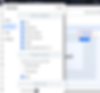
Click the Settings tab to set Recipient options and configure your Add to Cart button.
Click Design, then choose what you want to customize:
Page design: Customize the page background, gift card details such as the title, price, and description, and the image settings.
Fields & selection: Customize the font and color of field titles, amount options, gift card recipient details, and input fields.
Buttons: Customize the fill color, border, corner radius, and text font and color for the Add to Cart and Buy now buttons.

FAQs
Click a question below to learn more about customizing your gift card page.
Can I customize the gift card email template?
Yes, you can customize the email's design. Update elements like images, themes and backgrounds to create a look that suits your unique style.
How does the delivery date and time work?
When you select the Delivery date and time checkbox in the Settings tab, customers can choose when to email the gift card to the recipient. The delivery time is based on the time of purchase in UTC. For example, a card purchased at 12:00 EST is delivered at 12:00 UTC.

Can I test the gift card system before publishing my site?
The gift card system requires the site to be published to test it. You cannot simulate gift card purchases or redemptions in preview mode. Publish your site and use a test purchase to ensure everything works as expected.
Tip: You can send a test email to check what the gift card email looks like when it gets sent to a recipient.
How do I change the gift card settings (e.g. gift card name, description)?
You can edit the gift card name, description, image, amounts, and expiration settings from the Gift Card Settings in your site's dashboard.
