


Wix Blog: Managing Display Options in Your Blog
Showcase your blog your way by choosing exactly what readers see on your blog feed and posts. Whether it's the author name, publish date, like count, views and comment counters, you decide which details to show or hide. With full control over your blog display, you can craft a reading experience that feels thoughtful and aligned with your style.

Showing or hiding information in a blog or category feed
Highlight the details that matter most to your visitors by selecting what appears in your blog or category feed. These details that appear on your blog or category feed provide insight to the posts in your blog. They can boost engagement and help drive traffic to your blog. The options you choose apply to both your blog feed and your category feed.
Wix Editor
Go to your Blog page:
Click Pages & Menu

on the left side of the editor.
Click Blog Pages.
Click your Blog page.
Click the blog element on your page.
Click Settings.
Click the Display tab.
Customize the following display options:
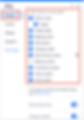
What shows on your post: Select the checkboxes next to the information you want to display.
Show blog menu: Enable/disable the toggle to show or hide the blog menu.
Category labels: Enable/disable the toggle to show or hide category labels.
Share and print: Click Share and print and customize the options available.
Enable share & print icons: Enable/disable the toggle to show or hide share and print icons.
Icons to show on posts: Select/deselect the checkboxes to show or hide certain icons.
Wix Studio
Go to your Blog page:
Click Pages

on the left side of the editor.
Click your Blog page under Blog Pages.
Click the blog element on your page.
Click Settings.
Click the Display tab.
Customize the following display options:
What shows on your post: Select the checkboxes next to the information you want to display.
Category labels: Enable/disable the toggle to show or hide category labels.
Share and print: Click Share and print and customize the options available.
Enable share & print icons: Enable/disable the toggle to show or hide share and print icons.
Icons to show on posts: Select/deselect the checkboxes to show or hide certain icons.

Harmony Editor
Click the Page dropdown at the top left of the page.
(In the Site Pages panel) Select the Blog page under Blog Pages.
Tip: Jump to the page you need by clicking the dropdown next to Site Pages and selecting Blog Pages.
Click the blog element on your page.
Click Settings.
Click the Display tab.
Customize the following display options:
What shows on your post: Select the checkboxes next to the information you want to display.
Category labels: Enable/disable the toggle to show or hide category labels.
Share and print: Click Share and print and customize the options available.
Enable share & print icons: Enable/disable the toggle to show or hide share and print icons.
Icons to show on posts: Select/deselect the checkboxes to show or hide certain icons.
Wix app
Go to your site in the Wix app.
Tap Manage

at the bottom.
Tap Blog.
Tap Page Settings.
Tap Category.
Customize the following settings:
Page header: Select or deselect the relevant checkboxes to choose what shows on your Category page.
Post Layout on Feed: Choose a layout for the posts on your category page: Card or List.
Info Shown on Feed: Customize what information displays on your blog feed:
Click Edit.
Select or deselect the relevant checkboxes to choose what shows on your blog feed.
Click Save.
Show featured posts carousel: Enable/disable the toggle to show or hide featured posts on your blog feed.
Show title: Enable/disable the toggle to show or hide a title on your featured posts carousel.
If enabled: Enter the title in the field provided.
Layout Settings: Choose a layout for your featured posts carousel: Classic or Text on image.
Info shown on carousel: Customize what information displays on your featured post carousel:
Click Edit.
Select or deselect the relevant checkboxes to choose what shows on your carousel.
Click Save.

Showing or hiding information on your Post page
Your Post page is the dedicated blog page which opens when your reader selects a specific post. You can choose what information you want to display on this page. Any settings you apply here apply to every post in your blog. Customize what displays on your post page by selecting or deselecting the relevant options.
Wix Editor
Go to your Post page:
Click Pages & Menu
on the left side of the editor.
Click Blog Pages.
Click Post.
Click the post page element on your page.
Click Settings.
Click the Display tab.
Customize the following display options:
What shows on your post: Select the checkboxes next to the information you want to display.
Show blog menu: Enable/disable the toggle to show or hide the blog menu.
Category labels: Enable/disable the toggle to show or hide category labels.
Share and print: Click Share and print and customize the options available.
Enable share & print icons: Enable/disable the toggle to show or hide share and print icons.
Icons to show on posts: Select/deselect the checkboxes to show or hide certain icons.
Add "Save" button to images: Enable/disable the toggle to add a Pinterest Save button to your post images.
Share text on X/Twitter: Enable/disable the toggle to allow readers the option to highlight a piece of text from your post and share it on X/Twitter.
Related posts: Click Related posts and customize the options available.
Show related posts: Enable/disable the toggle to show or hide related posts.
Display post label: Enable/disable the toggle to show or hide a post label.
Select what the label says: Related posts or Recent posts.
Show "See all" link: Enable/disable the toggle to show or hide a link to see all your blog posts.

Wix Studio
Go to your Post page:
Click Pages
on the left side of the editor.
Click Post under Blog Pages.
Click the blog post element on your page.
Click Settings.
Click the Display tab.
Customize the following display options:
What shows on your post: Select the checkboxes next to the information you want to display.
Category labels: Enable/disable the toggle to show or hide category labels.
Share and print: Click Share and print and customize the options available.
Enable share & print icons: Enable/disable the toggle to show or hide share and print icons.
Icons to show on posts: Select/deselect the checkboxes to show or hide certain icons.
Add "Save" button to images: Enable/disable the toggle to add a Pinterest Save button to your post images.
Share text on X/Twitter: Enable/disable the toggle to allow readers the option to highlight a piece of text from your post and share it on X/Twitter.
Related posts: Click Related posts and customize the options available.
Show related posts: Enable/disable the toggle to show or hide related posts.
Display post label: Enable/disable the toggle to show or hide a post label.
Select what the label says: Related posts or Recent posts.
Show "See all" link: Enable/disable the toggle to show or hide a link to see all your blog posts.

Harmony Editor
Click the Page dropdown at the top left of the page.
(In the Site Pages panel) Select the Post page under Blog Pages.
Tip: Jump to the page you need by clicking the dropdown next to Site Pages and selecting Blog Pages.
Click the blog post element on your page.
Click Settings.
Click the Display tab.
Customize the following display options:
What shows on your post: Select the checkboxes next to the information you want to display.
Category labels: Enable/disable the toggle to show or hide category labels.
Share and print: Click Share and print and customize the options available.
Enable share & print icons: Enable/disable the toggle to show or hide share and print icons.
Icons to show on posts: Select/deselect the checkboxes to show or hide certain icons.
Add "Save" button to images: Enable/disable the toggle to add a Pinterest Save button to your post images.
Share text on X/Twitter: Enable/disable the toggle to allow readers the option to highlight a piece of text from your post and share it on X/Twitter.
Related posts: Click Related posts and customize the options available.
Show related posts: Enable/disable the toggle to show or hide related posts.
Display post label: Enable/disable the toggle to show or hide a post label.
Select what the label says: Related posts or Recent posts.
Show "See all" link: Enable/disable the toggle to show or hide a link to see all your blog posts.
Wix app
Go to your site in the Wix app.
Tap Manage
at the bottom.
Tap Blog.
Tap Page Settings.
Select or deselect the relevant checkboxes to choose what shows on your Post page.

FAQs
Click a question below to learn more about displaying information on your blog
What is the difference between my Blog page and my Post page?
Your Blog page is your main blog feed. This is where snippets of all your blog posts are displayed. Your site visitors can scroll through your collection of posts and select the ones they want to read.
Your Post page shows one single blog post. It is the page that is shown when a visitor clicks on a blog post from your blog feed. The post opens in a new page (your Post page) where they can read the full post.
Read our article Understanding Your Blog Pages to find out more.
Can I customize what is displayed on a mobile view?
The information in this article is for desktop views. If you want to customize what information is displayed to your visitors using a mobile device, read our article Customizing Your Blog's Mobile View.
Can I hide the view, comment, and like counters from my posts in my blog feed?
Yes. You can choose whether you want to display or hide the counters, which indicate how many views, comments and likes each post has.
Go to your Blog page.
Click Settings.
Click the Display tab.
Deselect the following counters: Views, Comments and Likes.
Tip: If you decide you want to display them again, you can reselect them at any time.
Can visitors still leave comments if I hide the comment counter?
Yes. Hiding the comment counter just removes the comment count from view. Your visitors can still leave comments if comments are enabled. Learn how to enable or disable comments for your blog.