


Wix Mobile POS: Setting Up Tap to Pay
Important:
Wix Mobile POS allows you to make sales from your phone while on the go. To process payments in a physical store, learn more about Wix POS Register.
Tap to Pay lets you accept payments on your phone without connecting any external hardware. Customers can either tap a credit/debit card directly on your phone or use their own phones to pay you.

Requirements:
Location: Tap to Pay is currently available in the US and UK.
Note: The customer’s location is determined by the business location you entered on the Business Info tab in your site's dashboard.
iPhone:
The 15.5 operating system or higher
The iPhone XR model or later
Android: Android 11 or later
Step 1 | Download the Wix app
To start accepting payments from your mobile device, download the Wix app.
To download the Wix app:
Go to the Apple App Store (on iPhone) or Google Play (on Android).
Type 'Wix app' in the search field.
Click Get or Install to download the app.
You can also download the Wix app right to your phone using these links:
Step 2 | Create a Wix Payments account
If you don't already have one, start by creating and verifying a Wix Payments account.
Step 3 | Set up Tap to Pay
After your Wix Payments account is verified, you can set up Tap to Pay in your site's dashboard and in your phone.

To set up Tap to Pay:
Go to Accept Payments in your site's dashboard.
Click Accept next to Tap to Pay on mobile.
Go to your site in the Wix app.
Tap Manage

at the bottom.
Tap Getting Paid and select Point of Sale.
Tap the Connect icon

at the top right.

Click Continue.
Select an option:
Complete set up on iPhone
Tap Tap to Pay on iPhone.

Tap Activate.
Complete set up on Android
Tap Activate Tap to Pay.

Tap Activate.
Make sure NFC is enabled in your phone.
Tip: Search for NFC in your settings and enable it.
FAQs
Click a question below to learn more about setting up a POS.
What is NFC and why does it need to be enabled for Android phones?
NFC is a protocol found in Android phones which makes it possible to tap your phone to pay and receive payment. Without this setting enabled, Tap to Pay won't work.
To locate the setting in your device, go to Settings and search for NFC. Each type of phone is different, but you should be able to find and enable it.
What are the processing fees for Tap to Pay?
The processing fees are 2.6% of the transaction amount plus 20 cents.
After setup, how can I accept payment?
When it's time to collect payment at your point of sale, select the Card option and ask your customer to tap their card or phone on your phone to pay.

Learn more about:
Where on my phone should customers tap?
iPhone:
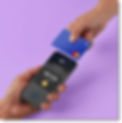
Customers should place their cards or phones near the tip of your phone.
Android:
Customers should place their cards or phones near the middle of the back of your phone.

Can I offer a refund for a payment received through Tap to Pay?
It's not currently possible to offer refunds for Tap to Pay payments. Learn more about refunding payments at a mobile POS.
Can I collect tax at a POS?
If your POS is connected to Wix Stores, tax can be collected. Note that the customer's location is determined by the business location you entered in the Business Info page in your site's dashboard.
Learn more about collecting tax for Wix Store sales at a mobile POS.
It is not currently possible to collect tax for payments not connected to Wix Stores.
I have a card reader and also have Tap to Pay set up on my phone. Can I use both?
Yes, but not at the same time. If you're using one option and want to switch to the other, you need to unpair the active one and then pair the option you want to use.
To switch card readers:
Go to your site in the Wix app.
Tap Manage
at the bottom.
Tap Getting Paid and select Point of Sale.
Tap the Connect icon
at the top right.
Tap Unpair to disconnect the card reader or Tap to Pay option.

Select and connect the relevant option.
Does a customer need the same type of phone as I have so they can pay?
No. Your customers can tap their Android or iPhones to complete payment, whether you have an Android phone or an iPhone.